

23.2. Import WFS |
The Web Feature Service (WFS) is defined by the Open Geospatial Consortium (OGC) to provide the information about the entity stored in a vector coverage that meets the characteristics formulated in the query.
It is a standard service, which offers a communication interface that allows interaction with the maps served by the WFS standard, such as downloading vector information.
To perform these operations, the gml language derived from xml is used, which is the standard through which WFS commands are transmitted. In addition to the gml format, depending on the service, it can offer other formats such as shape or kml.
When you run the command, a window first appears with a list of the various services configured in the program. This list includes a Name to identify the service, and a Web Address where you can make the map request. Items can be added to the list by typing on the line marked *. In addition, you have to specify the projection of the drawing, and if you want to obtain an image that occupies the entire visible drawing area, or designate a smaller window.
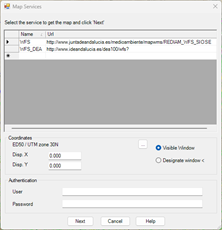
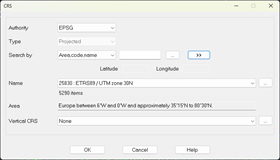
By default, the projection of the current drawing will be displayed, in case it is assigned, In any case, to select the projection you will have to press the browse button and it will show us the following dialog:
When the service requires basic authentication, you can enter the Username and Password to access the service.
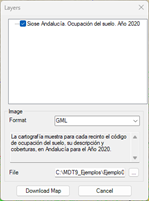
When you press the Next button , the program connects to the service selected in the list and another window appears to select the layer, as well as its format. These options depend on the service selected.
You can give a name to the downloaded file and choose the location by pressing the corresponding button.
Pressing the button Download Map The request for the file begins, it will be saved in the selected location, and automatically depending on the format of the selected file it will spit the corresponding import dialogs. In the case of the gml and shape formats, it will be done in the same way as explained in the previous section, in the case of the kml format, see the Import Kml section from Google Earth, in the Maps/Realism module.
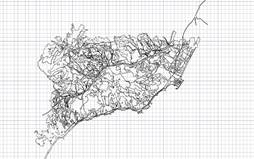
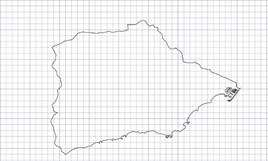
The result will be to draw the vector information on top of the drawing:
|
|