

23.3. Import WCS |
WCS (Web Coverage Services) are systems for querying and downloading raster information with its original semantics. Not only does it allow the image to be displayed, it also accesses its properties, that is, the query of the values associated with each pixel.
The use of WCS services is only advisable for downloading data for specific areas, taking into account that the information received will be adapted according to the framing and resolution of the client screen from which the request is made, since the pixel size is resampled, as well as, consequently, its variable value.
Continuous variables in space, such as average temperatures, terrain altitude, soil water content... etc, whose vector representation is less precise, are identified for the entire territory by means of the raster format with a value that reflects the average value of the variable for each pixel.
When you run the command, a window first appears with a list of the various services configured in the program. This list includes a Name to identify the service, and a Web Address where you can make the map request. Items can be added to the list by typing on the line marked *. In addition, you have to specify the projection of the drawing, and if you want to obtain an image that occupies the entire visible drawing area, or designate a smaller window.
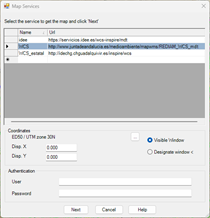
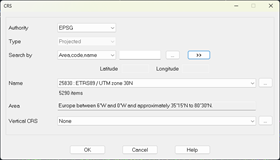
By default the current projection of the drawing will be displayed, in case it is assigned, however, with the browse button we have the possibility to assign or change the projection:
When the service requires basic authentication, you can enter the Username and Password to access the service.
When you press the Next button , the program connects to the service selected in the list and another window appears to select the layers to include in the image, as well as the format of the image. These options depend on the service selected.
When you select a layer, it shows you a brief description of that layer.
You can give a name to the downloaded file and choose the location by pressing the corresponding button.
Pressing the button Download Map The request for the image begins, and finally the program will request a file where it can be saved. A second file will be automatically created with the georeferencing data of the image.
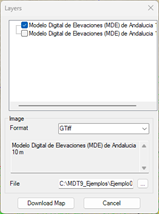
Once the image is downloaded, the GeoTiff format mesh import dialog is automatically displayed, as shown in the previous section, and will ask us for a location to save the file. MDE generated.
|
|