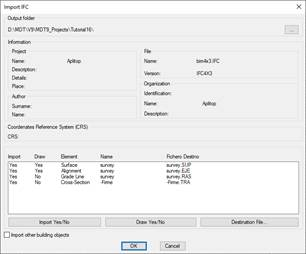
When executing the command, it will initially request the IFC file, once selected, the following window will appear in which both the characteristics of the project itself and its contents are displayed.
This option offers us the possibility of importing each of the elements.
Information: All the information contained in the IFC file and related to the project is shown.
In the list we will see the different elements that the file contains, in this case, it contains a surface, a horizontal and a vertical alignment.
Import Yes/No: We select the element we want to import.
Draw Yes/No: We indicate if after the import, we want the imported element to be drawn automatically.
Destination File: We select the name of the destination file of the element to be imported.
Import other building objects: If we activate this option, the IFC file to be imported will be analyzed and those elements that have their own representation will be imported as 3D Faces of the CAD, regardless of the elements of roads, such as Alignments, Surfaces and Grades.
The following objects are currently processed if they have a 3D representation:
· IfcBuildingElementProxy
· IfcSite
Once the dialogue has been accepted, the elements will be imported and drawn if appropriate.
Additionally, if the item to be imported has properties assigned, these will be imported automatically. These properties will be saved in an XML file with the same name as the imported file and .prop extension.
To consult the properties assigned to any element (alignment, surface ...) we have the command BIM > Property Assignment.
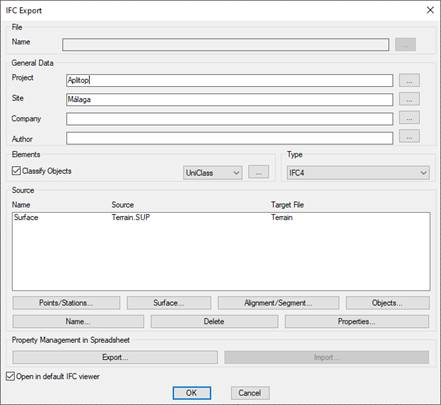
This command will enable you to export the content of our project to an IFC file. When first executing the command, the following window will appear in which you select the elements to be exported.
File
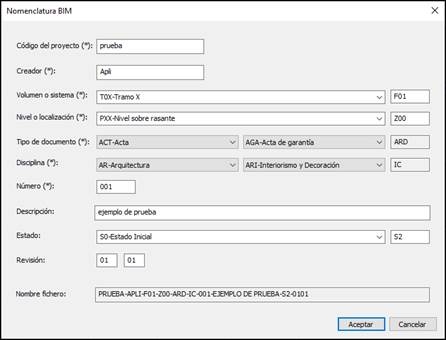
It allows us to give our exported IFC file a name according to the BIM Nomenclature, for this we press the button with the three dots and it shows us the corresponding dialog to select in each case the option that best suits our work and the state of it.

 TcpMDT - Help