

21.18. License Transfer |
In Utilities > License Transfer, there is a command that allows you to transfer a software license installed on the local computer to Aplitop's servers, and then install the license on another computer by downloading it from the same servers. When you run the command, a window first appears where you can choose when to perform the license move.
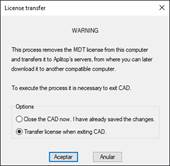
In both cases, the license transfer takes place when the CAD is closed. The first option closes the CAD immediately and the second allows you to continue working and postpones the transfer until the user decides to log out of CAD.
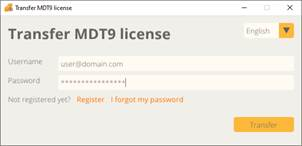
When the transfer is made, a window appears in which you must enter your username and password from the Aplitop website (if you are not registered: click on "Register", fill in the form and activate the account), and click Transfer.
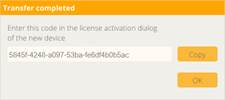
After a few seconds, a confirmation of the transfer will appear, with a code that allows you to install the software license on another computer. That code is also sent via email.
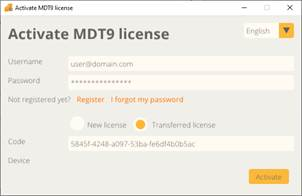
To reinstall the license, when you open the program on a computer where the software license is not installed, an activation window will appear. Enter your website username and password, select the Transferred License option, and copy the activation code into the Code field. Press Activate, and in a few seconds the software license will be installed on the computer.
|
|